What is a Custom ID?
With the custom identifier (custom ID), you can generate your own unique identifier for data records (activities & documents) in a template. This feature allows you to assign IDs according to a pattern you define, which can be flexibly composed of text, date, and a counter.
A custom ID could look like this:
INV-{YYYY}-{MM}-{DD}-{COUNTER}
- “INV”: Static text (also all “–” in the above ID)
- {YYYY}: Year of creation (e.g., 2025)
- {MM}: Month of creation (e.g., 09)
- {DD}: Day of creation (e.g., 30)
- {Counter}: Sequential number (e.g. 003)
- Sequential number that is assigned without gaps (also for archived records)
- The counter can be reset regularly (e.g., yearly or weekly).
- Depending on the reset setting, additional date components must be specified (e.g., the year and week for weekly resets). This ensures that the ID is unique.
⚠️ The configuration of the custom ID cannot be changed after the template has been saved. Please ensure that all settings are made carefully before saving the template.
How to create a custom ID
Step 1: Open the settings
- Open the desired template.
- Go to Template Settings.
- Activate the custom ID.
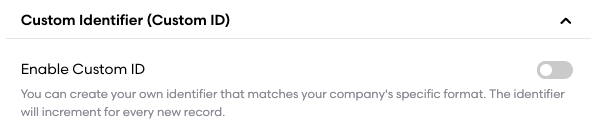
After activation, you will be prompted once to define the settings for the Custom ID.
Step 2: Configure the counter
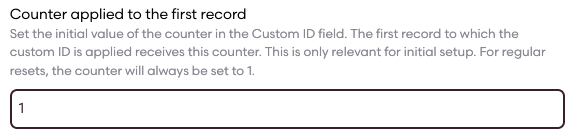
Counter for the first data record
- Here you specify which counter is applied to the first data record that is to receive a custom ID.
- This setting is recommended if you have already documented older data records in another system and now want to continue the ID in Playbook.
- Example: You have already documented 44 activities in another system. The first activity in Playbook should now receive the counter 45.
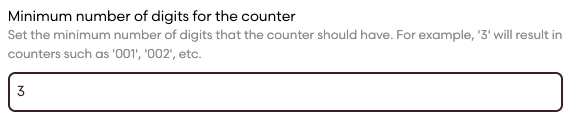
Minimum number of digits
- Specify the minimum number of digits the counter should have.
- Example: If you enter 3, the identifier 1 becomes 001.
- Especially if you reset the counter regularly, it is advisable to pay attention to how many data records are usually generated in a period before the counter is reset to 1.
- Don't worry: if there are not enough digits when assigning, we will automatically add digits. So if there are already 999 activities, the next one will receive the counter 1000, i.e. 4 digits.
Resetting the counter
- You can set the counter to reset automatically to 1 never, hourly, daily, weekly, monthly, quarterly, or annually.
- The default setting is “never.”
- Depending on the reset setting, additional date components must be specified (e.g., the year and week for weekly resets) . This ensures that the ID is unique.

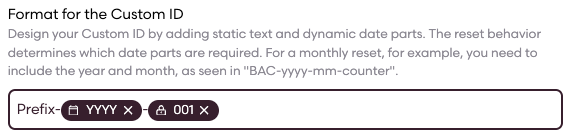
Step 3: Create the ID format
Finally, you can specify the individual format for your ID. This consists of a combination of:- static text (e.g., “INV-”)
- date components (e.g., year, month, day, hour)
- the counter
👉 If you have selected a reset after time intervals, the corresponding date components must be included in the format (e.g., year + month + day + hour for hourly resets).
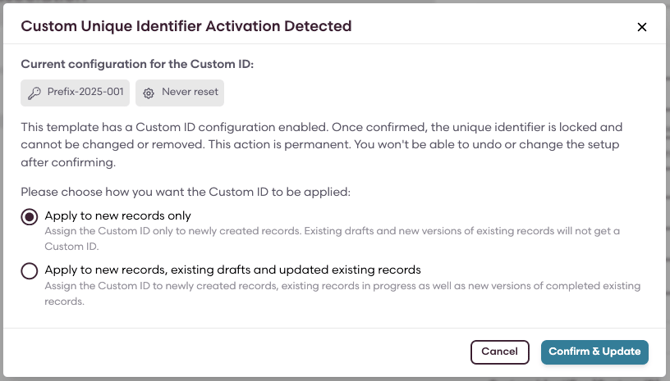
Step 4: Define scope of application
When saving, you will be asked whether the setting should apply to:
- Future records only
- Existing records as well
Special features for existing records
We put compliance first and never change completed records retrospectively. This results in the following logic with regard to records that were created before the introduction of the user-defined ID.
- The counter (including the reset setting) is applied based on the creation date.
- Uncompleted existing records are immediately assigned a user-defined ID.
- Completed existing records only receive a custom ID when a new version is created for that record.
Example: Only when the third, already completed activity receives a new version does it receive the counter 0003.