
Read-only Input Fields
Input fields can now be configured as Read-only to display predefined content while preventing end-user modifications.
How it works:
-
Open the input field settings.
-
Enable the Read-only toggle.
- Save the configuration.
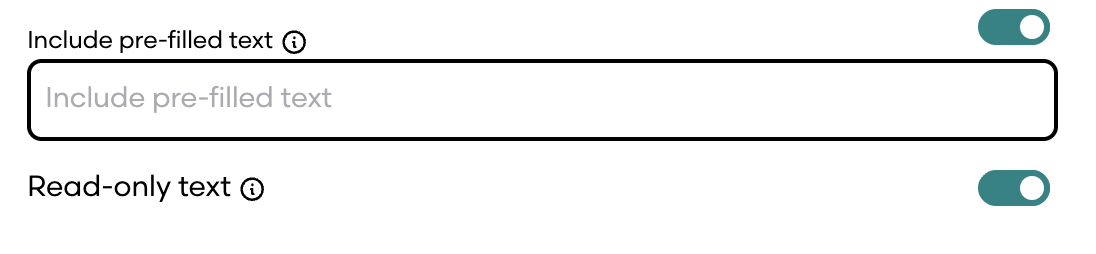
Once enabled:
- The field value remains visible
- Users cannot modify the field directly
- Existing values remain unchanged
Supported behavior
When Read-only is enabled:
- Typing is disabled
- Inline editing is disabled
- Record-based updates are disabled
- Validation continues to treat populated read-only values as valid
- Read-only fields do not block form submission
- Dynamic content continues to render normally
When Read-only is disabled:
- The field behaves as a standard editable input
Switching between editable and read-only:
- Does not reset values
- Does not duplicate fields
- Does not alter stored data structures
Document Replacement
You can now replace existing uploaded documents while retaining access to previous content.
How it works:
-
Open an existing uploaded document.
-
Select Replace Document.
-
Upload the new file.
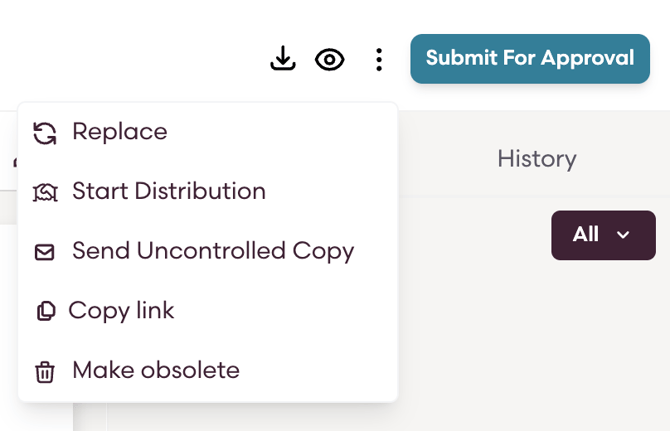
The new file becomes the active version & the previous files remain available for reference.
Supported behavior
When a document is replaced:
- Previous files remain accessible
- Users can preview replaced files
- Users can download replaced files
- Replacement details are retained:
- Timestamp
- User who performed the replacement
Replaced File Identification
Replaced files are visually distinguished from active versions.
Included indicators:
- Replaced status label
- Replaced watermark
Watermarks are visible in:
- File preview
- Downloaded files
Rejected Documents & Activities
Rejected content is now retained and accessible for review.
This applies to:
- Uploaded files (PDF, DOCX)
- Playbook documents
- Playbook activities
How it works:
-
Open the relevant item.
-
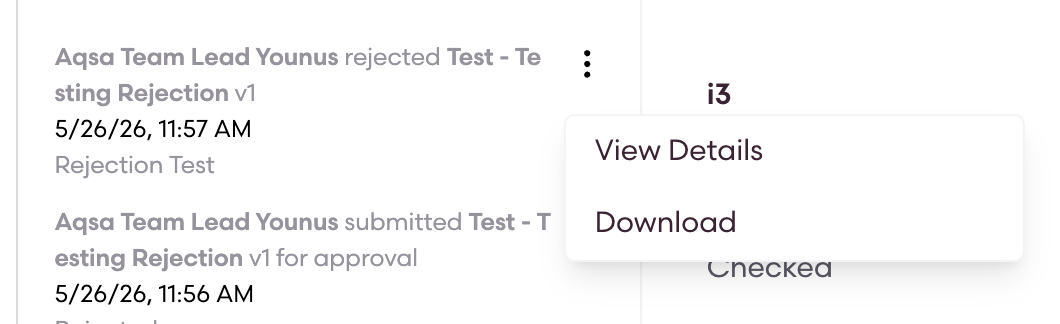
Navigate to historical versions.
-
Select the rejected entry.
-
Preview or download the generated PDF.
What's included
Supported behavior
Rejected entries contain:
- Rejection reason
- Rejected status
- Actor
- Timestamp
Users can:
- View rejected content as PDF
- Download rejected content as PDF
Rejected File Identification
Rejected content is visually differentiated using a dedicated watermark.
Included indicators:
- Rejected status
- Rejected watermark
Watermarks appear the same as for replaced files.