
Automated Role Assignment in Forms
Automated Role Assignment allows you to automatically grant users or groups access to a document or activity step based on the information entered. This helps you streamline workflows, reduce manual work, and ensure that form access is always routed to the correct people.
What You Can Do With Automated Role Assignment
With automated assignment, you can:
- Automatically assign a user based on a field value.
- Grant Viewer, Editor, or Owner permissions automatically.
- Assign access to an entire document or to a specific step.
- Combine multiple rules to support conditional routing logic.
- Track all automated assignments through the audit log for full visibility.
How Automated Assignment Works
Automations are built using trigger rules. When a activity/document field meets a specific condition
for example, “Email equals X”
The system assigns the selected user or group automatically. You can configure one or more rule groups to support even complex workflows.
Set Up Automated Role Assignment
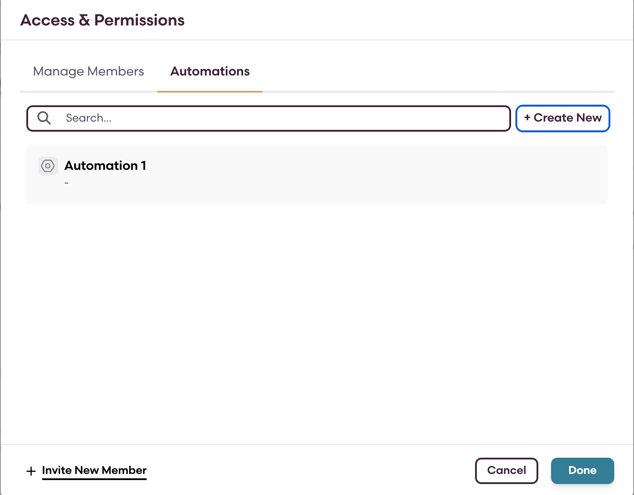
1. Navigation
- Navigate to the activity/document you want to configure.
- Click on the plus next to the user icons.

- Click Add Automation or open an existing one.
2. Add a Trigger Rule
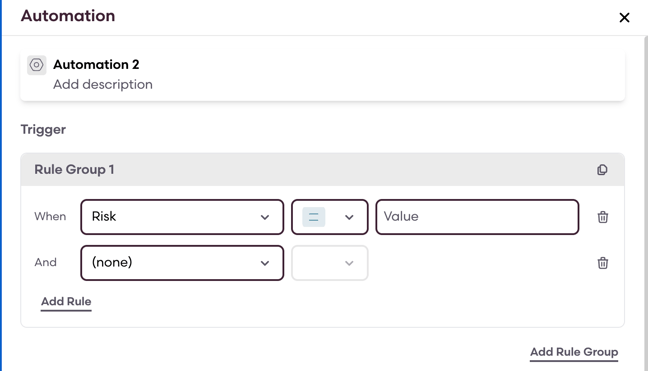
- In Rule Group 1, click the dropdown under When.
- Select the form field you want to use as a trigger
- Choose the condition type (equals, contains, etc.).
- Enter the value that should trigger the assignment.
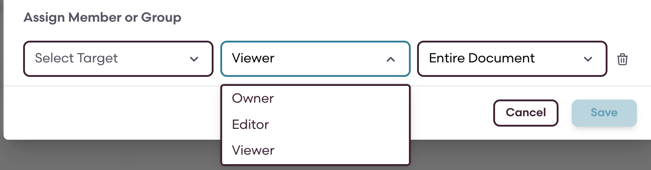
- Under Assign Member or Group, select a user or user group.
- Choose the Permission Level (Viewer, Editor, Owner).
- Choose the Access Scope (specific step or entire document).
- Click the + icon to add multiple assignment actions if needed.
4. Save Your Automation
Click Save to activate your automation. It will run automatically whenever the conditions are met.
View Automated Assignment Activity in the Audit Log
All automated assignments are recorded for transparency and compliance. To view them:- Open your form or document.
- Click the History tab.
- Look for entries such as:
-
- “Automation 1 added [User Name]”
- “User X completed Step 2…”
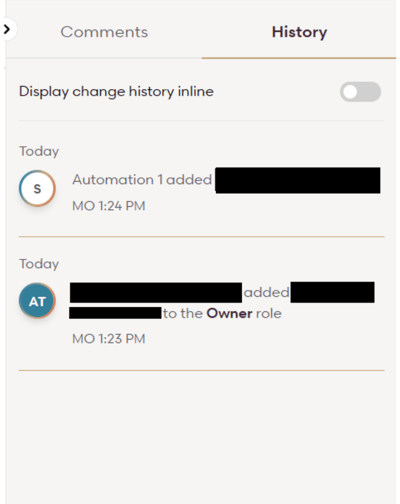
This ensures full visibility into who was assigned, when, and through which automation.
Tips and Best Practices
- Use clear rule names to keep automations organized.
- Combine multiple rules for more precise routing.
- Review the audit log periodically to verify assignments.
- Test automations before using them in live workflows.